
QuickVidShrink Video for Email & Chat
About
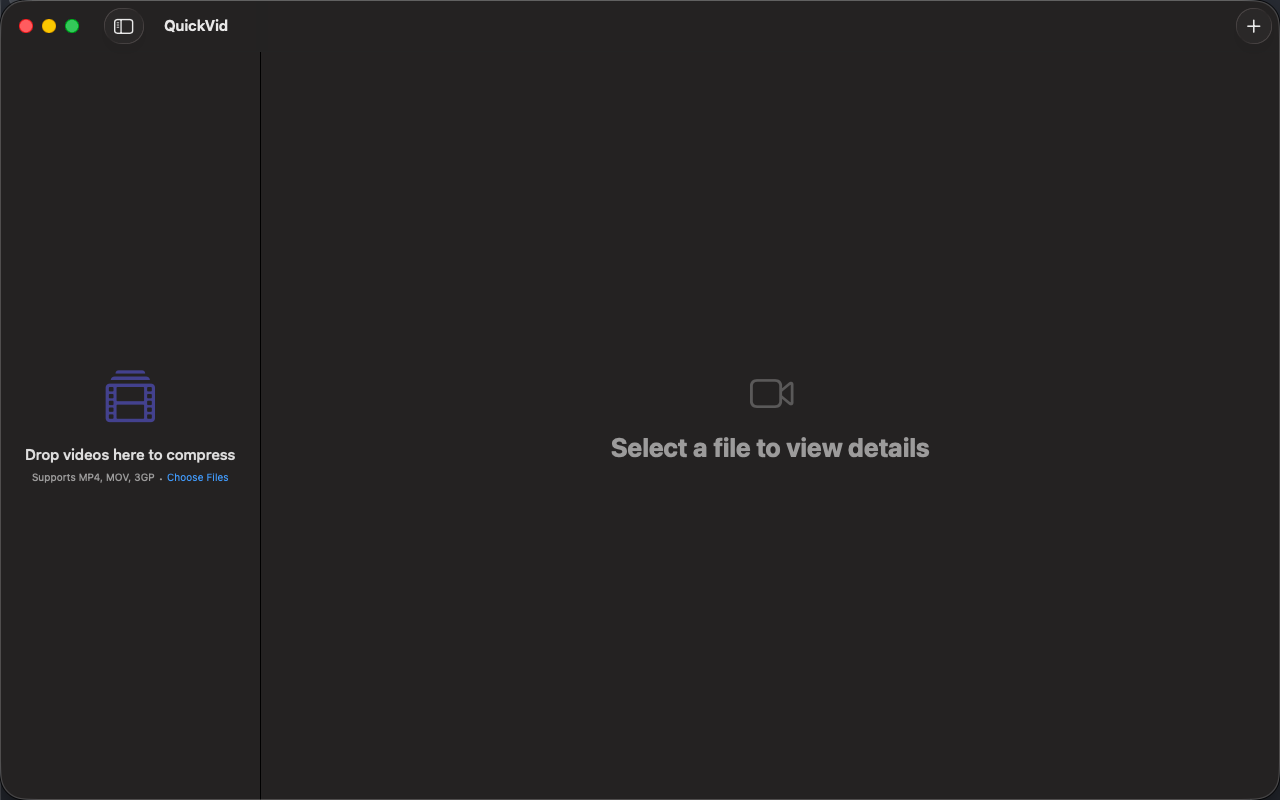
QuickVid Compress is the simplest way to make a video smaller on Mac. Drop a file, pick a mode, save the result. No codec menus, no bitrate math, no learning curve.
Built for the moment you hit Discord's upload cap, iMessage refusing your video, or an email bouncing because the attachment is too big.
WHAT MAKES QUICKVID DIFFERENT
- THREE-CLICK WORKFLOW
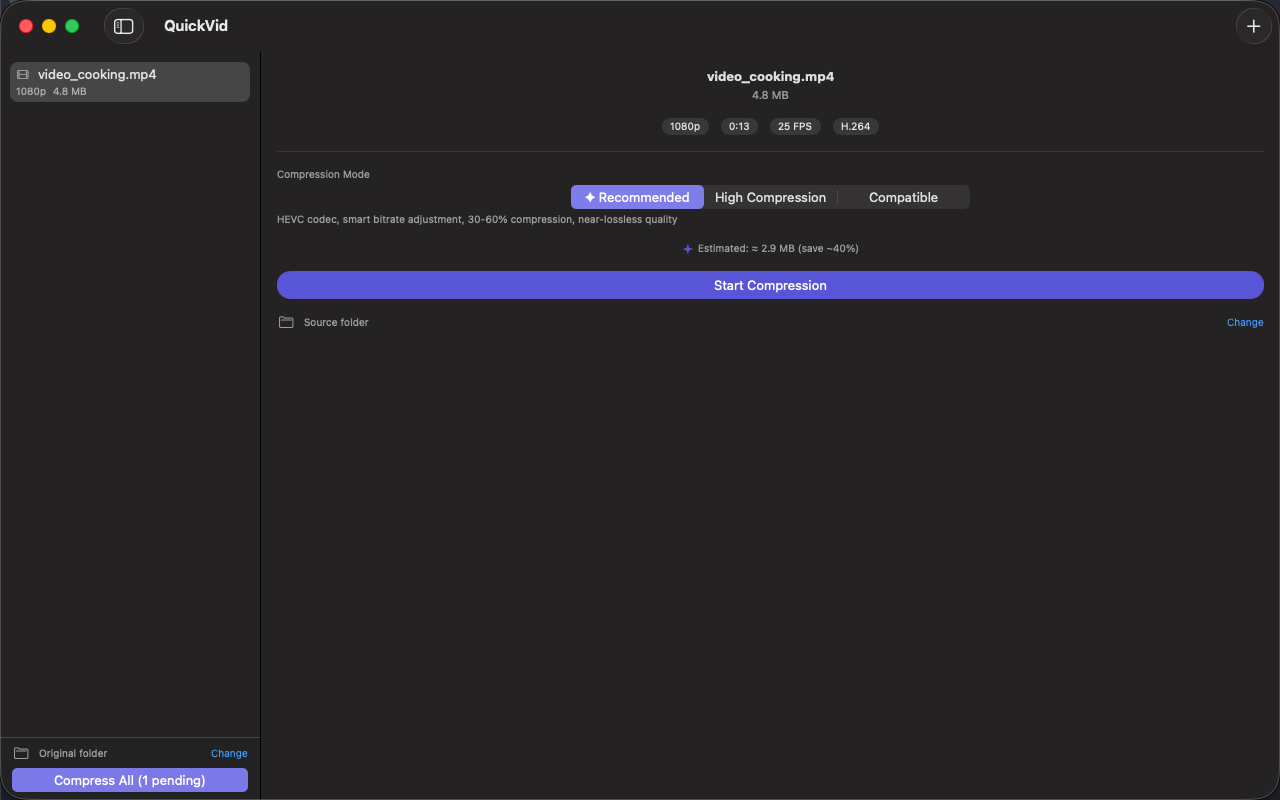
Drop the video, choose a mode (Recommended, High Compression, Compatible), save. About 30 seconds end to end. No configuration anxiety.
- PURPOSE-BUILT MODES
Recommended: 30–60% smaller, virtually no quality loss — the general-purpose pick. High Compression: 50–70% smaller — aim straight at messaging upload caps. Compatible: H.264 output that plays anywhere — the sharing-safe pick.
- APPLE SILICON NATIVE
Uses VideoToolbox hardware encoding. A 1-minute 4K video compresses in seconds on an M1 or later. Significantly faster than Handbrake's software encoders for the same job.
- HEVC AND H.264
HEVC for ~30% smaller files when your audience is on Apple devices. H.264 for universal compatibility — email, Discord, anywhere.
- PARALLEL BATCH (Pro)
Drop multiple files. QuickVid encodes them in parallel when your Mac has the cores. Handbrake's default queue is sequential.
- 100% LOCAL
No upload, no telemetry, no account. Family videos, work recordings, screen captures — none of it leaves your Mac.
WHO IS QUICKVID FOR?
- People who hit upload limits and want a 30-second fix
- Anyone who has opened Handbrake, seen the codec menu, and closed it again
- Mac users on Apple Silicon who want hardware-accelerated encoding
- Anyone who compresses video weekly but isn't a video professional
WHAT QUICKVID ISN'T
Not a replacement for Final Cut Compressor or Handbrake if you need ProRes mastering, two-pass bitrate encoding, or AV1 output. Different tools for different jobs.
SMALLER FOR EVERY DESTINATION
QuickVid reduces MOV and MP4 files alike, picking h264 or HEVC for you — no ffmpeg flags, no codec homework. Need a clip small enough for WhatsApp or a group chat? Choose High Compression and send it.
PRICING
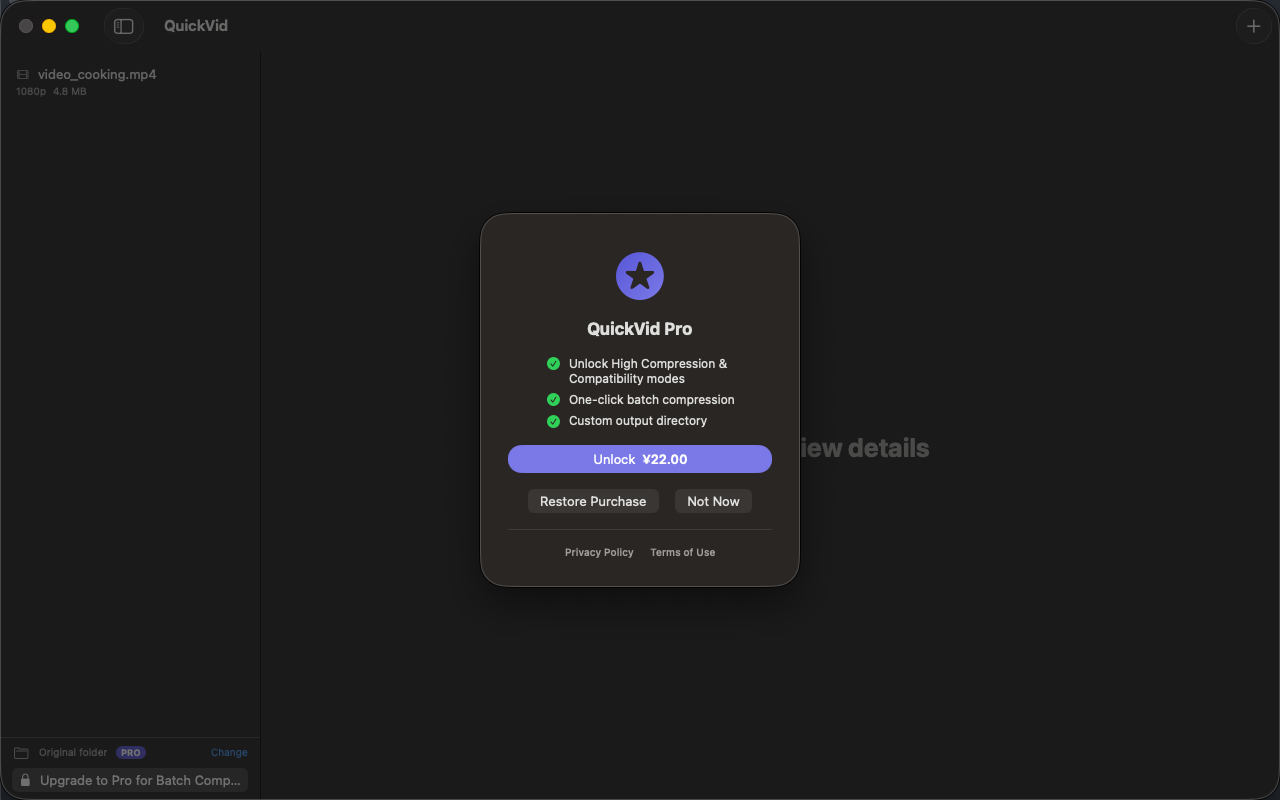
One-off use with the Recommended mode is included at no additional purchase. One-time Pro unlock adds all three modes, parallel batch, resolution scaling, and custom output directories. Never a subscription.
FEEDBACK
Made by Peter Zhang. Every email at obeliskclubclub@gmail.com is read personally. Need a format we don't support? Tell us.
Learn more: obelisk.club/quickvid-compress
Core Capabilities
Smart Compression
Three modes — Recommended (HEVC, 30–60% savings), High Compression (50–70% savings), and Compatible (H.264, best sharing support). Users on the base tier get unlimited Recommended mode. Pro adds optional 1080p/720p downscaling.
Drag & Drop Workflow
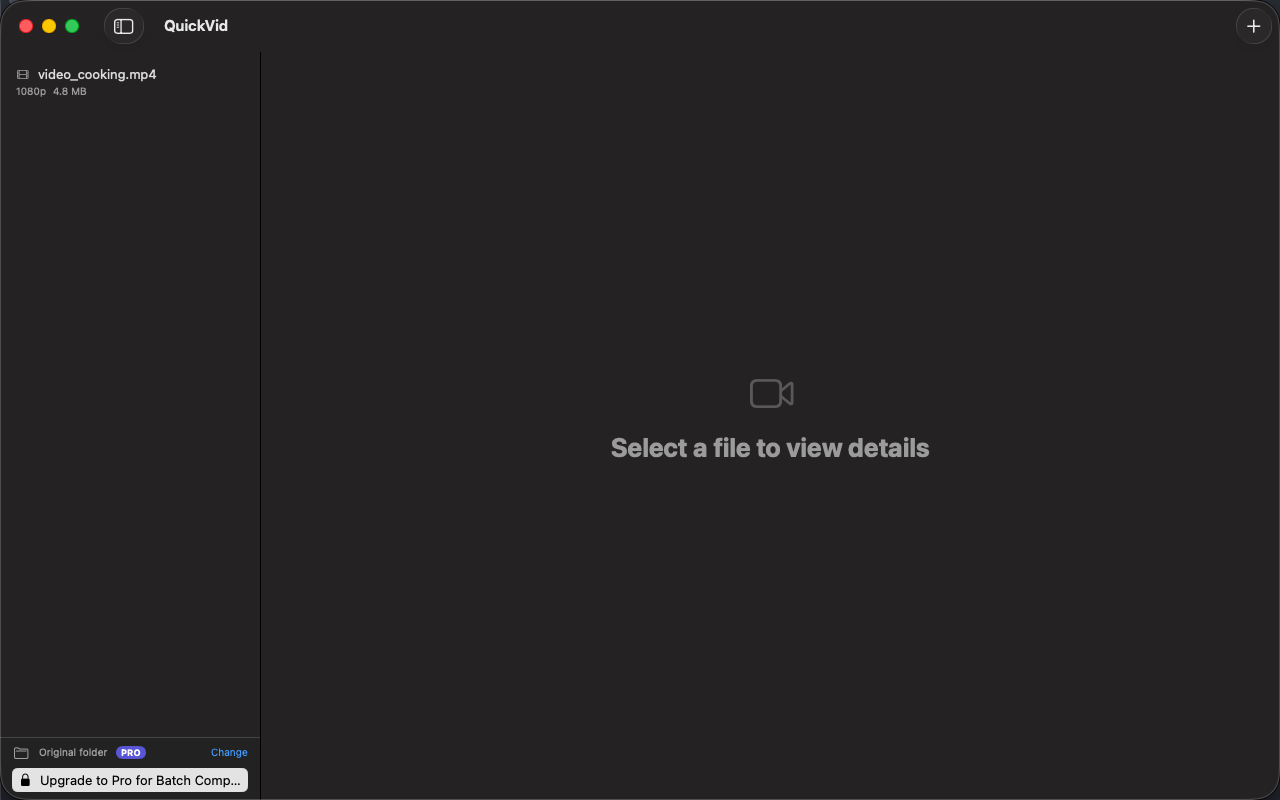
Drop video files or entire folders onto the window. Metadata loads instantly — resolution, duration, codec, and frame rate are all shown before compression.
Batch Processing
Queue multiple videos and compress them all with one click. Pro users can process entire libraries with a single batch operation.
Before/After Results
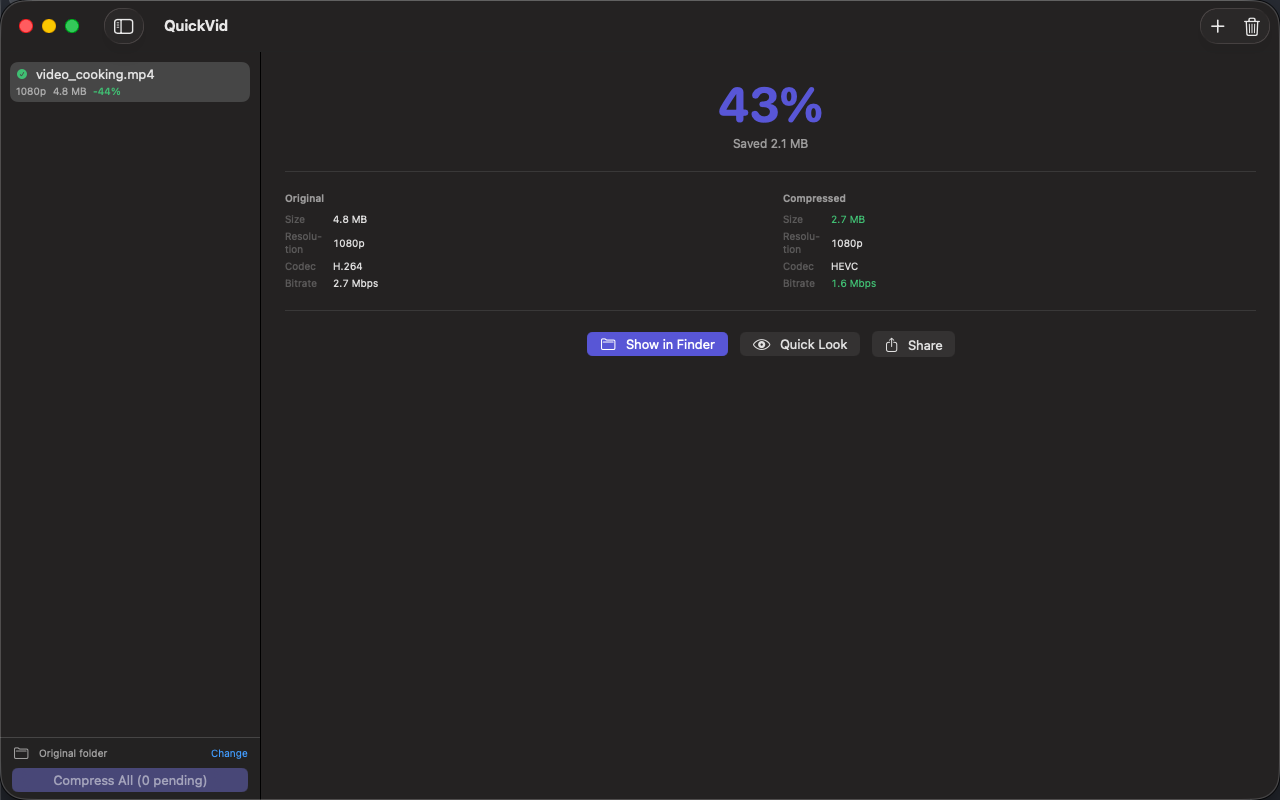
See exactly what changed — original vs compressed size, codec, bitrate, and resolution in a clear comparison card. Open output in Finder with one click.
Apple Silicon Native
Hardware-accelerated VideoToolbox encoding — a 1-minute 4K clip compresses in seconds on M1 or later, far faster than software encoders for the same job.
100% Local & Private
No upload, no telemetry, no account. Family videos, work recordings, screen captures — none of it ever leaves your Mac.
Frequently Asked Questions
- How do I make a video small enough for Discord or email?
- Drop the video into QuickVid, pick High Compression mode (50–70% smaller — aimed straight at messaging upload caps) or Recommended mode (30–60% smaller with virtually no visible quality loss), and save. The whole workflow takes about 30 seconds.
- Is QuickVid faster than HandBrake?
- For everyday shrink-this-video jobs, yes. QuickVid uses VideoToolbox hardware encoding on Apple Silicon, so a 1-minute 4K video compresses in seconds — significantly faster than software encoders — and Pro encodes batches in parallel rather than one at a time.
- Should I choose HEVC or H.264 when compressing?
- HEVC produces roughly 30% smaller files and is ideal when your audience is on Apple devices. H.264 is the universal choice for email, Discord and older players.
- Does QuickVid upload my videos anywhere?
- No. Compression is 100% local — no upload, no telemetry, no account. Family videos, work recordings and screen captures never leave your Mac.
Interface
High Fidelity UI
High Fidelity UI
High Fidelity UI
High Fidelity UI
High Fidelity UI
Guides for QuickVid
What is CRF in video compression? A practical guide for non-engineers
CRF is the single most useful knob in modern video encoding — but most guides explain it wrong. Here's what it actually does, with concrete recommendations.
'iMessage attachment too big' — how to fix it on Mac and iPhone
Why iMessage rejects your video, what the actual size limits are, and three ways to compress a video down to a working size — including a one-click Mac fix.
How to compress an MP4 without losing quality (Mac, 2026)
"Visually lossless" is achievable. Here's the recipe — codec, CRF, preset — and how much smaller you can realistically expect.
How to compress video for Discord, iMessage, and email on Mac
Every chat app has a different upload limit, and every codec choice has a different trade-off. A practical guide to shrinking videos on macOS for the platforms you actually share to.
More from Obelisk

SnapPro
SnapPro is the professional screenshot and screen recording tool macOS deserves. Pixel-perfect capture, unlimited recording, on-device OCR —…

ViewOne
Your iPhone fired off 50 burst photos at the playground. Now they're sitting on your Mac, and you can't bring yourself to sort through them.…

PhotoBridge
PhotoBridge backs up your iPhone photos directly to storage you own — Synology, QNAP, Nextcloud, AWS S3, MinIO, Aliyun OSS, or an external d…
How QuickVid compares
Honest, dimension-by-dimension comparisons — including where the other tool wins.
Mac video compression
QuickVid vs HandBrake
HandBrake is the open-source standard for video transcoding on Mac. It's free, powerful, scriptable, and has been the answer to 'how do I shrink this video' for over a decade. QuickVid Compress is a much newer, much simpler app aimed at people who don't want to learn HandBrake. Here's how to decide which fits your need.
Video compression
QuickVid vs Compressor
Compressor is Apple's professional video encoding tool, designed for Final Cut Pro workflows. QuickVid Compress is a much simpler app aimed at people who just need a video to be smaller. Here's an honest take on when to pick which.
Video compression
QuickVid vs Permute
Permute is a popular Mac media converter that handles video, audio, and image format conversion. QuickVid Compress is a focused video shrinker. Here's how to decide which fits the task.
Video compression
QuickVid vs ffmpeg
ffmpeg is the open-source command-line video tool that powers most of the video software on the internet. QuickVid Compress is a Mac GUI app that wraps a focused subset of what ffmpeg can do. Most video pros end up using both — here's how to think about when to use which.